An overview at a glance
The home screen shows asset totals, wire roll counts, remaining wire length, and items needing attention. Open a card to explore its inventory, or tap an alert to inspect the asset.
Take your inventory into the storeroom. Find equipment, scan barcodes, record wire usage, and complete stocktakes on your phone, with an offline inventory overview always close at hand.
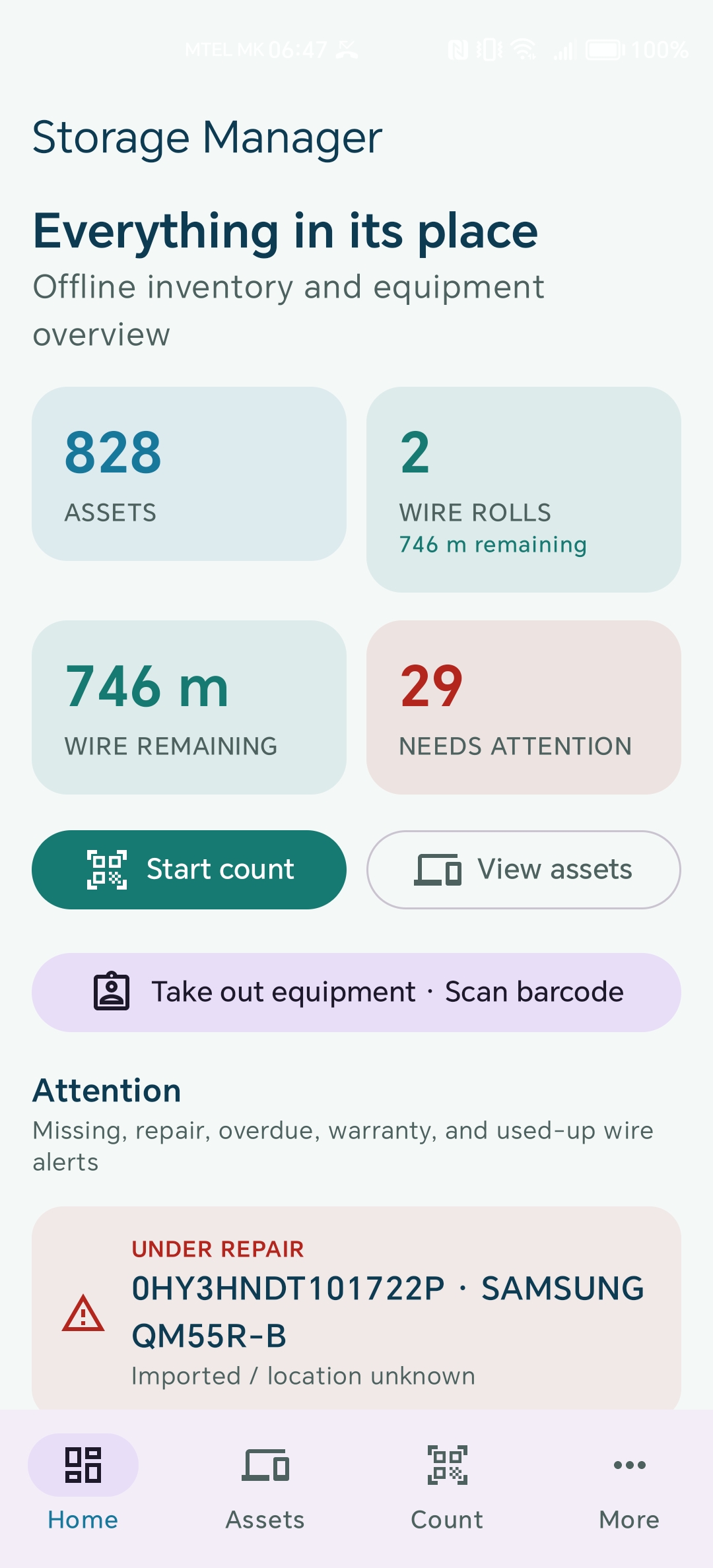
Actual Android home screen · Dashboard crop
Explore the workflows and tools available in this edition, from everyday equipment tracking to reports and portable backups.
The home screen shows asset totals, wire roll counts, remaining wire length, and items needing attention. Open a card to explore its inventory, or tap an alert to inspect the asset.
Search by asset tag, barcode, serial number, category, or location. Scan common 1D and 2D barcodes to find equipment without typing the identifier.
Use Take out equipment · Scan barcode from Home. Equipment opens its assignment form; a wire roll opens the form for the length taken. Manage employees, assignments, and equipment kits.
Record wire type, original length, and length used for each roll. Enter the metres taken and optionally who took them; remaining stock updates and the transaction is recorded in the audit log.
Scan assets during a count and review completed stocktakes, missing equipment, and unknown codes. Keep previous stocktakes available for later review.
Review missing, under-repair, overdue, warranty, and used-up wire alerts. Open an asset directly from the list, then edit its details when action is needed.
Take an asset photo with the camera or select multiple existing images from your device. Photos are copied into the app’s private storage and travel with portable ZIP backups.
Preview a Code 128 label for an asset or wire roll with a saved barcode. Print through Android Print or export a PNG. The label shows the asset number and encodes the saved barcode used by the scanner.
Save A4 PDF reports for completed stocktakes and the current attention list, or send them to a printer through Android Print.
Choose an .xlsx file and review Create, Update, and Skip actions by sheet before importing. The app maps older stocktake fields to asset records and skips conflicting identifiers for review.
Manage local users and roles and review the audit history. Administrators can optionally enable biometric sign-in on their phone after confirming their password.
Export a ZIP with records and photos, or import a Windows backup. Core inventory records are stored locally. Export a backup before uninstalling, because uninstalling removes private app data.
A typical working day with Storage Manager, in four straightforward steps.
Set up or choose a local user account. Add your first assets or import a portable ZIP from your Windows inventory.
Scan an item’s barcode, open its record, check its photos, and record an assignment or wire usage.
Start a count, scan the assets you find, and review missing items and unfamiliar codes afterward.
Save or print your report and export a portable ZIP when you want to move inventory back to Windows.
Android 7.0 or newer. Barcode scanning uses Google Play services; the scanner component may need an initial download. Contact APKTopia for the current installation package and setup guidance. Public store downloads and pricing are not listed here yet.
Export a portable ZIP before uninstalling or moving to a different phone. Uninstalling removes the inventory and photos stored privately by the app.
Administrators opt in on each phone after confirming their password. Any strong biometric enrolled on that phone can unlock an administrator account that has enabled this option, so use it only on a trusted device.
Ask about a demonstration, installation, or the right edition for your team.